Dual Boot Windows 8 With Windows XP
The Default Boot Loading Option of windows 8 is set to Windows Developer Preview this disables the WINDOWS XP Booting.However after hours of R&D I finally Found out the way to change the booting sequence to enable Windows Xp. Follow These Simple Steps and you will be able to reboot windows xp.
Step 1: Navigate To The My Computer.

Step2: Click On The "System Properties" Present On The Extreme Right Side Of The Ribbon.

Step3: On The Next Window Select "Advanced System Settings".

Step4: Now Navigate towards the "ADVANCE" Tab and then click setting for “Start-up & recovery ”.
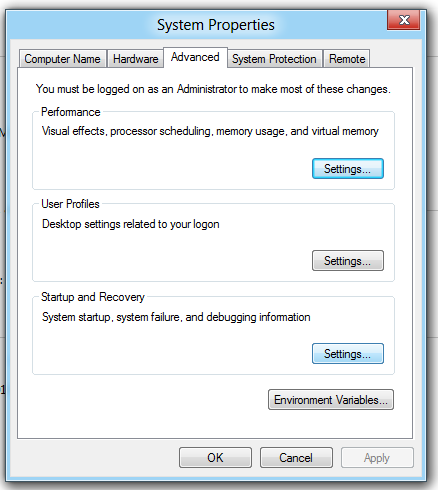
Step5: Now In The Default OS Selection Select “Earlier Version of Windows ” Now click on ok and restart your PC.

Step6: Now you should have option to load windows XP prior to Windows 8 Start ,Enjoy all windows platform

Command Line Execution
Type this ” bcdedit /set {bootmgr} default {ntldr} ” and reboot your PC and you should get your Windows XP back with “Windows Earlier version option” in boot menu.
Tag :
Windows 8
All New: Symbian Belle
The next version of Symbian, called Symbian Belle, is announced today. Hot on the heels of the Symbian Anna release,
the latest version of our smartphone operating system looks and works
better than ever before. Headline features are gorgeous new widgets,
more customisation options, new apps and built-in NFC functionality. As
before, the upgraded operating system will be available on new Symbian
smartphones and will be made available as a free update for users with
phones running Symbian Anna.
Symbian Belle adds to the work done by Anna to improve and modernise
the Symbian experience. Here are some of the highlights of what you’ve
got to look forward to:
Free-form, differently-sized, live widgets: widgets like the clock, email, music player, favourite contacts and the calendar have been redesigned and now come in five different sizes and rearranged to create a completely personalised set of screens. There are also new ‘Toggle’ widgets for tasks like switching on Bluetooth and changing profiles.


More homescreens: with Symbian Belle the maximum number of homescreens rises from three to six, so now you can have absolutely everything close at hand.
Improved status bar: the status bar sports a modern, flat look and incorporates a pull down notifications tab that incorporates common settings and notification of incoming messages, missed calls and the rest.
Modernised navigation: the navigation and options bar at the bottom of the screen sports a modern, new look, similar to that first seen on the Nokia N9.


New apps: a new suite of powerful business apps from Microsoft includes Lync (IM for businesses, like Microsoft Communicator), Sharepoint, OneNote, Exchange ActiveSync and PowerPoint Broadcaster.
Informative lock screen: the lock screen now tells you about missed calls, messages in your inbox and more, so you can check your phone at a glance. You can now also add a coloured wallpaper to your lock screen.
NFC devices: With Symbian Belle, Near-Field Communications (NFC) is now deeply integrated into the operating system, so you can share pictures, connect with accessories, and check-in – all with just a tap.


Visual multitasking: Now you can flick between larger live images of your open apps to see what’s going on at a glance and move quickly between your apps.


Tag :
Nokia
Ice Cream Sandwich:Learn How to Run the Emulator

Google announced Android 4.0 Ice Cream Sandwich, and, on the same day, released the SDK. This means that you can run ICS for yourself in your computer. On the bottom of this post you'll find steps (plus a video) on how to get Android 4.0 working on your desktop. But first, I wanted to show you a walkthrough of Ice Cream Sandwich to point out the major new features.
Altough the emulator doesn't give us a good sense of the performance, but what I can tell is that ICS looks much more refined and feels much more consistent when compared to previous versions of Android for phones. We see a ton of UI elements come from Honeycomb, which isn't a bad thing.
To run the Android 4.0 Ice Cream Sandwhich emulator:
1. Download the SDK
2. Extract the Zip to a folder on your desktop
3. Click SDK Manager.exe
4. Put a check in the box for Android 4.0, click Install Packages on bottom right
5. Go back into the Android folder on your desktop, open AVD Manager.exe
6. Click New
7. Give it a name, change the target to Android 4.0
8. Click Create AVD
9. Hit Start, wait five minutes
Tag :
Android
Windows 8 Shortcuts Tips and Tricks

Keyboard and mouse shortcuts and tips for Windows 8 Developer Preview users on a PC without a touch-screen.
Windows key shortcuts:
- Windows + Spacebar switch the input language and keyboard layout
- Windows + Tab cycles through apps
- Windows + Q brings up Application search
- Windows + W brings up Settings search
- Windows + F brings Files search
- Windows + I brings up settings charm
- Windows + O brings rotation lock
- Windows + C brings up the Charm menu, as does hovering over the lower-left hand corner of the screen
- Windows + F brings up the Search screen, though simply typing (when on the Start screen) is more convenient
- Windows + Z in a fullscreen app brings up the contextual menus
- Windows + D takes you to the desktop
- Windows + L locks the PC, invoking the lock screen
- Windows + P pulls up multi-monitor settings
- Windows + I brings up the Settings charm
- Windows + E invokes Windows Explorer, as ever
- Windows + R brings up the Run prompt
- Windows + Y makes all your open windows (and the Metro UI) transparent, so you can see the desktop beneath
- Windows + X shows Windows Mobility Center, which appears to serve much the same role as the Settings charm but on the desktop instead
Metro UI tips:
- You can simply start typing with your keyboard on the Start screen to launch applications and search.
- You can use most old keyboard shortcuts such as Win+D or Win+R or Win+L.
- Mouse mode lets you activate the charms/options by putting the mouse at the bottom left edge.
- Mouse mode also lets you active in-app options by right clicking.
- Use the keyboard's arrow keys and page down/up to pick tiles. Use Enter to launch them. The menu button will let you select them.
- The Scroll wheel pans across Start screen, slowly
- Right-click brings up contextual menus in a full screen app
- Left-click on the Start screen brings up options to unpin, resize and uninstall apps
- Ctrl-Alt-Delete summons a screen with options to shut down, switch users, log off or quickly open the Task Manager
- To unlock the lock screen, double tap on your mouse or hit any key on the keyboard instead of dragging to the top
- In any app, right click to bring up the “app bar” to see everything you can do
- To go back to the Start screen, simply use the Windows Key on your keyboard
- Bump your mouse against the left side of the screen to see a thumbnail of your most recently used app. Use the scroll wheel to see all open modern apps
- Modern apps don’t generally need to be closed — they are suspended when they’re not in view. If you really need to close them, use the task manager (via the tile or ctrl+shift+esc) to force quit
- Use the page up and page down keys to move between tile groups on the Start Screen
- Bump your mouse to the left and grab an app, if you pull it towards the right and then bump it to the left it will cycle to the next app
- Pin/unpin tiles or remove apps by right clicking on tiles on the Start Screen
- Activate Semantic Zoom in Metro apps by using Ctrl+ mouse scroll
Tag :
Windows 8
Android 4.0 SDK Now Available

Android 4.0 Platform
Android 4.0 is a major platform release that adds a variety of new features for users and app developers. Besides all the new features and APIs discussed below, Android 4.0 is an important platform release because it brings the extensive set of APIs and Holographic themes from Android 3.x to smaller screens. As an app developer, you now have a single platform and unified API framework that enables you to develop and publish your application with a single APK that provides an optimized user experience for handsets, tablets, and more, when running the same version of Android—Android 4.0 (API level 14) or greater.
The Android 4.0 platform is available as a downloadable component for the Android SDK so you can begin developing and testing your applications on Android 4.0 with the Android emulator. The downloadable platform includes an Android library and system image, as well as a set of emulator skins and more. The downloadable platform does not include any external libraries.
To start developing or testing against Android 4.0, use the Android SDK Manager to download the platform into your SDK. For more information, see Adding SDK Components. If you are new to Android, download the SDK Starter Package first.
Reminder: If you've already published an
Android application, please test your application on Android 4.0 as
soon as possible to be sure your application provides the best
experience possible on the latest Android-powered devices.
For a high-level overview of the new user and developer features in Android 4.0, see the Platform Highlights.
Learn How To Run Android 4.0 In Emulator
Tag :
Android
Get rid of the Windows 8 Metro UI

We’ve tried out the Windows 8 Developer Preview and so far it looks pretty nice. Except the Metro Start Menu is not very good interface if your running it on a desktop or laptop PC.
We said Alt F** That and made an app that will allow you to toggle the new start menu in the easiest way possible.
Simply run RPToggle and it will automatically change the appropriate registry values and restart the necessary processes.
Download RPToggle Here
Tag :
Windows 8
How to Remotely Shutdown Computer

Remotely Shutdown Computer is a very old trick to Shutdown other Computers in you network. This will shutdown any Computer you want with the help of CMD and IP address. IP address or Hostname any of this will help you to Shutdown any System........
So you just follow some easy steps and you'll be able to shutdown any system you want!!!
1) Open you CMD.
2) Now Type Shutdown -i and hit enter, then you will see a new windows appear after a sec. or so.
3) Then Click on add and type IP address and click ok then write a Comment if you want and Hit ok.....
NOTE: TO FIND IP ADDRESS TYPE IPCONFIG IN HIS PC
4) Now his/her computer will automatically Shutdown.
NOTE: IF YOU GET CAUGHT I AM NOT GONNA RESPONSIBLE FOR ANYTHING...
Tag :
Hacking
Install Android paid apps for free

Requirements
- PC or Laptop.
- Internet on both Mobile as well as computer.
- Android Phone
1) Turn On you computer and plug you android device with PC. (Use data cable)
2) If your PC is not showing your device in “My computer” than install the software from here
3) Now, the device will show up in “My Compter”. Now open up the Android Market.
4) Now, select the app you want to install in you “android phone” Just copy the name of that app.
5) Now, open shared.com and paste the name of the app in the “Search box”.
6) Now select the app with .apk extension and download it.
7) For E.G: – If you select Doodle Jump and pasted it in the search box, then select the app with .apk extension.
8) Download it and open “My computer”, open the “Android Phone drive” and copy the file in it.
 Icon and install it in “Android Phone”. (Its free)
DO NOT PASTE IT IN ANY FOLDER JUST PASTE IT IN THE MEMORY CARD.
9) Now, you need to open your Wiifi or open Internet in your Phone.
10) Now, Go to market and search INSTALLER and download the app with
Icon and install it in “Android Phone”. (Its free)
11) Now open installer and it will show you some apps that u have just pasted in “Android Phone Drive”.
12) Install it and its Completed……..